Article
How to Create a DigitalOcean Droplet (Step-by-Step Guide for Beginners)
I used to think cloud servers were only for developers or IT pros. But last week, I launched my own DigitalOcean Droplet — and it took less than a minute. I have limited experience with Linux servers beyond basic hosting, and yet here I am, running my own virtual server with full root access.
In this post, I'll walk you through exactly how I did it, step by step. Whether you're launching a website, hosting a web app, running n8n for automation, or just want to learn something new — you can do this too.
What Is a DigitalOcean Droplet?
Think of a Droplet as your own personal computer in the cloud. It's a virtual private server (VPS) that you can use for nearly anything:
- Hosting websites and blogs (WordPress, Ghost, static sites)
- Running web apps built with Node.js, Flask, Django, or Rails
- Self-hosting tools like n8n, Plausible Analytics, or Gitea
- Learning Linux commands in a real server environment
- Setting up game servers, VPNs, or development environments
Unlike shared hosting, you get total control over the server — install any software, open any port, configure any service. You're the system administrator of your own machine.
Why DigitalOcean?
I compared several VPS providers before choosing DigitalOcean. Here's what stood out:
- Fast setup: Launch a Droplet in under 60 seconds — faster than any other provider I tried.
- Affordable: Plans start at just $4–$6/month. Try our DigitalOcean pricing calculator to estimate your costs.
- Developer-friendly: Clean, intuitive UI and some of the best documentation in the industry.
- Generous free credits: New accounts get $200 in credits — enough to run a Droplet for months.
- Flat-rate pricing: No surprise bills. You know exactly what you'll pay each month.
Want $200 DigitalOcean Credit? Claim It Here
Droplet Sizes: Which One Should You Choose?
| Plan | vCPU | RAM | Storage | Price | Best For |
|---|---|---|---|---|---|
| Basic Shared CPU | 1 | 512 MB | 10 GB SSD | $4/mo | Learning, very low traffic |
| Basic Shared CPU | 1 | 1 GB | 25 GB SSD | $6/mo | Small websites, n8n, dev environments |
| Basic Shared CPU | 2 | 2 GB | 60 GB SSD | $12/mo | WordPress, medium-traffic sites |
| Basic Shared CPU | 2 | 4 GB | 80 GB SSD | $24/mo | Multiple apps, small databases |
| Premium Intel | 2 | 4 GB | 80 GB NVMe SSD | $28/mo | Better performance, production apps |
For most beginners, the 1 vCPU / 1 GB RAM at $6/month is the right starting point. You can resize to a larger plan later without losing your data.
Step-by-Step: Launch a Droplet in 60 Seconds
1. Create Your DigitalOcean Account
Visit DigitalOcean via our referral link and sign up. New accounts get $200 in free credits valid for 60 days — enough to run a Droplet for months at no cost.
2. Click "Create Droplet"
After logging in, click the "Create" button in the upper-right corner and select "Droplets."
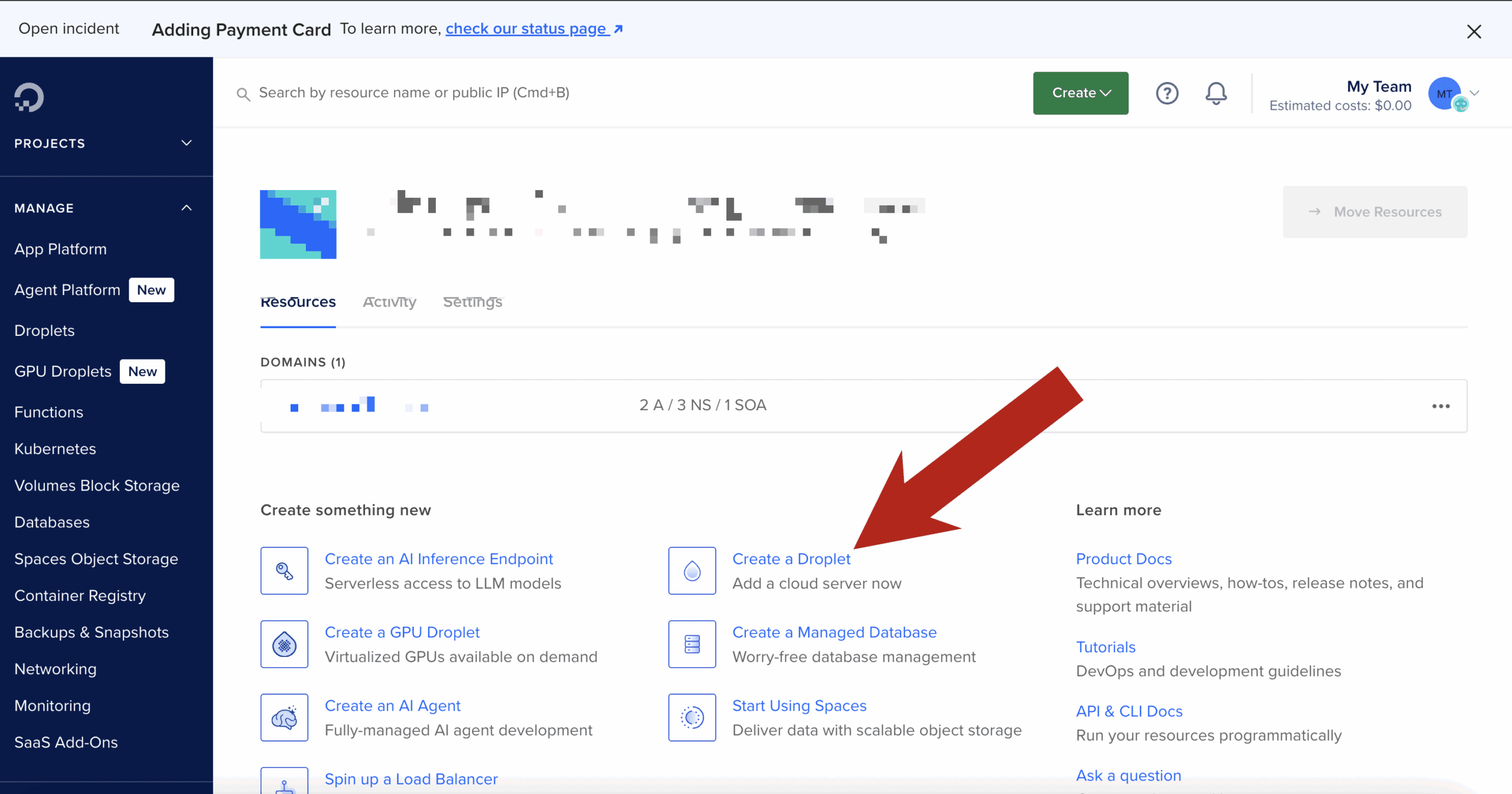
3. Choose an Operating System
Select Ubuntu 22.04 LTS — it's stable, well-supported, and beginner-friendly with abundant documentation and tutorials. If you have a specific reason for another OS (Debian, Fedora, Rocky Linux), those work too.
4. Select a Plan
Choose Basic Shared CPU with 1 GB RAM at $6/month. This is perfect for learning and small projects. You can upgrade later from the Droplet settings without data loss.
5. Choose a Data Center Region
Select a region geographically close to your users for the fastest response times. If you're unsure, New York or Amsterdam are solid defaults. DigitalOcean has 15 data centers across 9 regions globally.
6. Set Up Authentication
You have two options:
- SSH Key (recommended): More secure — no password to steal. DigitalOcean helps you generate and add one during setup. See our SSH guide for a full walkthrough.
- Password: Easier to start but less secure. Use a strong, unique password if you choose this method.
7. Name Your Droplet and Launch
Give your Droplet a simple name like my-first-droplet. Then click "Create Droplet."
Within 60 seconds, your server is live and you'll see an IP address assigned to it.
Connecting to Your Droplet
DigitalOcean provides your Droplet's IP address immediately after creation. Open your terminal and log in:
ssh root@your_droplet_ipIf you used an SSH key, you'll be connected immediately. If you used a password, enter it when prompted.
Once connected, you have full root access. You can install any software, configure any service, and run any command.
What to Do After Connecting
Update the System
sudo apt update && sudo apt upgrade -yCreate a Non-Root User (Recommended)
Running everything as root is a security risk. Create a regular user with sudo access:
adduser yourusername
usermod -aG sudo yourusername
Enable the Firewall
ufw allow OpenSSH
ufw enable
Add more rules as needed — for example, ufw allow 80 and ufw allow 443 for web traffic.
Install a Web Server
# Install Nginx
sudo apt install nginx -y

# Or install Apache
sudo apt install apache2 -y
What You Can Host on a Droplet
- WordPress: Install LAMP stack (Linux, Apache, MySQL, PHP) or use a DigitalOcean one-click WordPress Droplet
- Static Sites: Serve HTML/CSS/JS files with Nginx — extremely fast and low-resource
- Node.js Apps: Deploy Express, Next.js, or any Node application
- Python Apps: Run Flask or Django behind Gunicorn and Nginx
- n8n Automation: Self-host n8n for unlimited workflow automation — see our n8n self-hosting guide
- Databases: Run PostgreSQL, MySQL, or MongoDB (or use DigitalOcean's managed database service)
Bonus Tips for Beginners
- Take snapshots before major changes: Droplets → Your Droplet → Snapshots. Costs $0.06/GB/month — cheap insurance.
- Use Cloudflare DNS: Free tier includes CDN, DDoS protection, and DNS management. Point your domain at Cloudflare, then Cloudflare to your Droplet.
- Enable automated backups: Available for 20% of the Droplet's monthly cost — restores previous state in one click.
- Use DigitalOcean's Managed Databases: Skip the complexity of managing a database server — Managed PostgreSQL starts at $15/month.
Final Thoughts
If I can do it in 60 seconds with no prior server experience, you absolutely can too. Whether you're launching your first website or building the foundation for your next big project, a DigitalOcean Droplet gives you control, flexibility, and speed — at a price that's hard to beat.
👉 Get started with $200 in free DigitalOcean credit and launch your first Droplet today.
Frequently Asked Questions
How much does a DigitalOcean Droplet cost per month?
Droplets start at $4/month for a minimal 512 MB RAM instance and $6/month for the 1 GB RAM plan most beginners should start with. All plans include a fixed amount of outbound bandwidth — the 1 GB plan includes 1 TB/month, which is far more than most small projects need. See our complete DigitalOcean pricing guide for all tiers.
Can I host multiple websites on one Droplet?
Yes. Nginx and Apache support virtual hosting — you can serve multiple domains from a single Droplet with separate configurations for each site. For low-to-medium traffic sites, a 2 GB RAM Droplet ($12/month) can comfortably handle 3–5 sites simultaneously.
What is the difference between a Droplet and DigitalOcean App Platform?
A Droplet is a raw virtual server — you control everything including the OS, software, and configuration. The App Platform is a managed PaaS (Platform as a Service) where DigitalOcean handles infrastructure, scaling, and deployments automatically. Droplets give more control; App Platform is easier but less flexible. For learning Linux and server administration, start with a Droplet.
How do I connect a domain name to my Droplet?
In your domain registrar's DNS settings, add an A record pointing your domain (or subdomain) to your Droplet's IP address. Propagation takes a few minutes to an hour. You can also manage DNS through DigitalOcean's free DNS service — add your domain in the Networking section of the DigitalOcean dashboard.
Is DigitalOcean safe and reliable?
Yes. DigitalOcean maintains 99.99% uptime SLAs on Droplets and has a strong reliability track record. For production applications, add automated backups and consider using a DigitalOcean Load Balancer with two Droplets for high availability. For development and learning projects, a single Droplet is perfectly sufficient.