Article
How to Use Claude Code: A Practical Guide for Developers
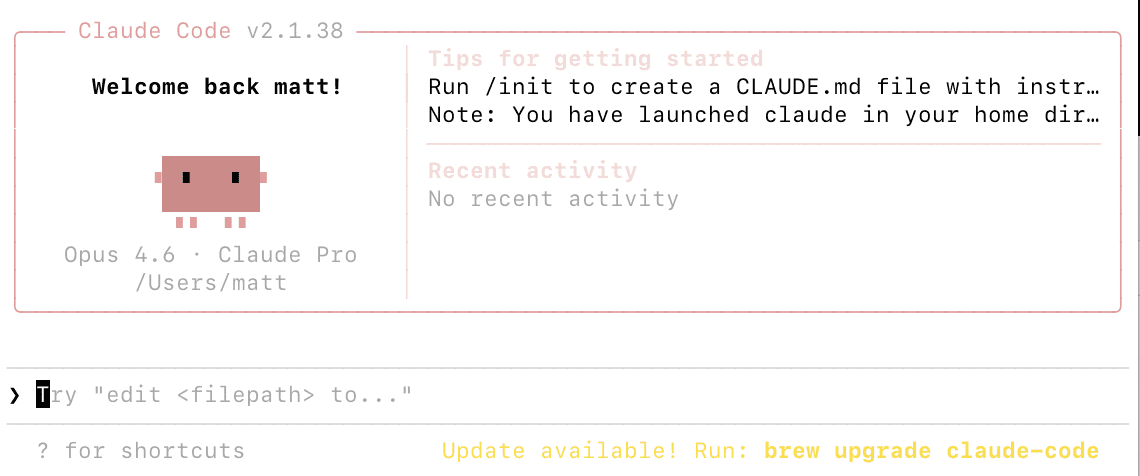
Claude Code is a powerful AI coding assistant, but getting the most out of it requires understanding its workflows, commands, and best practices. This guide covers everything from basic interactions to advanced techniques that will help you use Claude Code effectively in your daily development work.
If you have not installed Claude Code yet, start with our installation guide for Mac, Windows, and Linux. For background on what the tool does, see what is Claude Code.
Starting Your First Session
Open your terminal, navigate to your project directory, and type claude to launch an interactive session. Claude Code reads your project files and understands the structure of your codebase from the start. You type natural language requests at the prompt, and Claude Code responds by reading files, proposing changes, and executing commands with your approval.
A good first interaction is asking Claude Code to explain your codebase. Type something like "give me an overview of this project's architecture" and it analyzes your files and provides a summary. This helps you see what Claude Code understands and gives you a baseline for more complex requests.
Essential Slash Commands You Should Know
| Command | What It Does |
|---|---|
/init |
Generates a CLAUDE.md configuration file for your project |
/clear |
Resets your conversation context — essential when switching between unrelated tasks |
/compact |
Summarizes conversation history to free up context window space |
/cost |
Shows your current session's token usage and estimated cost |
/model |
Switches between AI models (Sonnet for speed, Opus for complex reasoning) |
/help |
Lists all available commands including custom ones you've created |
/resume |
Returns to a previously named conversation session |
/rename |
Names the current session so you can find it later |
The /model command lets you switch mid-session. Sonnet is the default and handles most coding tasks efficiently at lower cost. Opus provides the most capable reasoning for complex architectural decisions and subtle debugging.
File References and Shell Commands
Use the @ symbol to reference specific files or directories. For example:
@src/api/users.js explain the authentication flowThis directs Claude Code to focus on that file specifically. You can reference entire directories too — @src/components/ gives Claude Code context about all files in that folder.
Execute shell commands within a session by prefixing them with !:
!npm testRunning !npm test runs your test suite without leaving the conversation and costs fewer tokens than asking Claude to do it conversationally — Claude sees the output directly and can respond to failures immediately.
For a deep dive into terminal-specific techniques, see how to use Claude Code in the terminal.
Common Development Workflows
Bug Fixing
Describe the problem and let Claude Code investigate. Share error messages, stack traces, or describe the unexpected behavior. Claude Code reads your error messages, traces through your code, identifies the root cause, and proposes a fix as a diff you review and approve.
Be specific: instead of "fix this code," say "the login endpoint returns a 500 error when the email field is empty — find and fix the missing validation." The more context you provide upfront, the better the results.
Feature Implementation
Describe what you want built and Claude Code creates or modifies the necessary files. For multi-file features, it maintains context across all affected files simultaneously. Review proposed changes as diffs before accepting.
Code Reviews
Ask Claude Code to review recent changes or a specific file. It checks for security vulnerabilities, performance problems, and maintainability concerns. For example: !git diff main | claude -p "review these changes for security issues and potential bugs"
Refactoring
Describe the transformation you want — "extract this logic into a shared utility function" or "convert these callbacks to async/await" — and Claude handles multi-file changes consistently. Review the proposed diff before accepting.
Writing and Running Tests
Claude Code excels at generating tests for existing code. Point it at a function or module and ask for comprehensive test coverage. It writes the tests, you run them with !npm test, and Claude responds to failures directly.
Git Workflows
Claude Code handles git workflows end to end. Tell it "commit these changes with a descriptive message" and it stages the relevant files, writes a meaningful commit message, and executes the commit. It can also create branches and open pull requests when connected to GitHub through MCP.
Useful git prompts:
- "Summarize the changes since last release and write a changelog entry"
- "Resolve the merge conflict in src/api/users.js"
- "Create a branch called feature/user-auth and implement the authentication middleware described in the spec"
Learn how to connect external tools like GitHub in our guide on how Claude Code works and how to extend it with MCP.
Using CLAUDE.md for Persistent Context
CLAUDE.md files give Claude Code persistent context about your project. Run /init to generate one automatically, then customize it with:
- Coding standards and style preferences
- Preferred libraries and frameworks
- Architecture decisions and constraints
- Review checklists and testing requirements
- Commands for running tests, building, and deploying
Claude Code reads CLAUDE.md at the start of every session, so you don't need to repeat this information in every prompt. For details on setting this up, see our setup and configuration guide.
Using Claude Code in Your IDE
The terminal is the primary interface, but Claude Code also integrates with VS Code, Cursor, Windsurf, and JetBrains IDEs. These extensions show proposed changes as visual diffs, let you share selected code as context, and provide a sidebar panel for interaction without leaving your editor.
Key IDE features:
- Visual diff view for proposed file changes
- Right-click context menu to send selected code to Claude Code
- Inline suggestion acceptance without switching to terminal
- Shared session state between terminal and IDE
For complete setup instructions and IDE-specific tips, see our dedicated guide on using Claude Code in VS Code and Cursor.
Non-Interactive Mode and Automation
Claude Code supports non-interactive mode for scripting and CI/CD integration. Run claude -p followed by a quoted prompt to get a single response piped to stdout:
# Review changes before a commit
git diff --staged | claude -p "review these changes for bugs and security issues"

# Monitor logs and alert on anomalies
tail -f app.log | claude -p "alert me if you see errors or anomalies"

# Generate documentation from code
cat src/api/*.js | claude -p "generate API documentation in markdown format"

# Bulk operations across files
ls src/components/*.tsx | claude -p "identify which components are missing TypeScript types"
This composability is what makes Claude Code fundamentally different from chat-based AI assistants — you can integrate it into any automated pipeline.
Choosing the Right Model for Each Task
Switch models based on task complexity to balance quality and cost:
| Task Type | Recommended Model | Why |
|---|---|---|
| Writing tests, fixing lint, generating boilerplate | Sonnet | Fast and cost-effective for well-defined tasks |
| Debugging complex issues, multi-file refactoring | Sonnet or Opus | Sonnet handles most cases; upgrade if results are poor |
| Architectural decisions, complex design tradeoffs | Opus | Strongest reasoning for nuanced decisions |
| Automated pipelines and scripts | Sonnet (default) | Cost-efficient for high-volume automation |
Managing Costs While Using Claude Code
Claude Code consumes tokens for each interaction, with costs varying by codebase size, query complexity, and conversation length.
Most effective cost control strategies:
- Use
/clearbetween unrelated tasks — stale context from a previous task wastes tokens on every subsequent message - Use
/compactwhen a conversation grows long — it summarizes without losing important context - Use
/costto monitor spending during a session - Choose Sonnet over Opus for routine work — most tasks don't require Opus-level reasoning
For a full breakdown of subscription plans, API pricing, and optimization strategies, read our Claude Code pricing guide.
Frequently Asked Questions
How do I give Claude Code context about my project?
The best way is through a CLAUDE.md file in your project root. Run /init to generate one automatically, then edit it to include your project's conventions, architecture, and commands. Claude Code reads this file at the start of every session. You can also use @ references to point Claude Code at specific files for context within a session.
Can Claude Code modify files directly, or does it just suggest changes?
Claude Code proposes changes as diffs and waits for your approval before writing to disk. You see exactly what will be modified before anything changes. This keeps you in control while Claude handles the heavy lifting. You can accept, reject, or ask for modifications to any proposed change.
How do I use Claude Code for a large codebase?
For large codebases, focus Claude Code on specific directories or files rather than letting it scan everything. Use @ references to give it relevant context. Use CLAUDE.md to explain the overall architecture so you don't need to explain it in every session. The /compact command helps manage context as conversations grow long.
What's the difference between /clear and /compact?
/clear completely resets your conversation history — Claude Code loses all context from the session. Use this when switching to a completely different task. /compact summarizes the conversation into a shorter form, preserving the important points while freeing up context window space. Use compact when you want to continue a long session without losing important context.
Can I run Claude Code in the background while I work?
Yes. Use non-interactive mode (claude -p "your task") to run Claude Code as a background process. You can also use claude --dangerously-skip-permissions in trusted automated environments to run without interactive approval prompts. For CI/CD integration, the non-interactive mode pipes Claude's output to stdout for logging and further processing.
How do I connect Claude Code to GitHub or other external tools?
Claude Code connects to external tools through the Model Context Protocol (MCP). You configure MCP servers in your Claude Code settings that give it access to GitHub, Jira, Slack, Google Drive, and any custom tools you build. Once configured, you can ask Claude Code to create GitHub issues, update Jira tickets, or read Slack messages directly from your terminal session. See our guide on how Claude Code works and how to extend it with MCP for setup details.